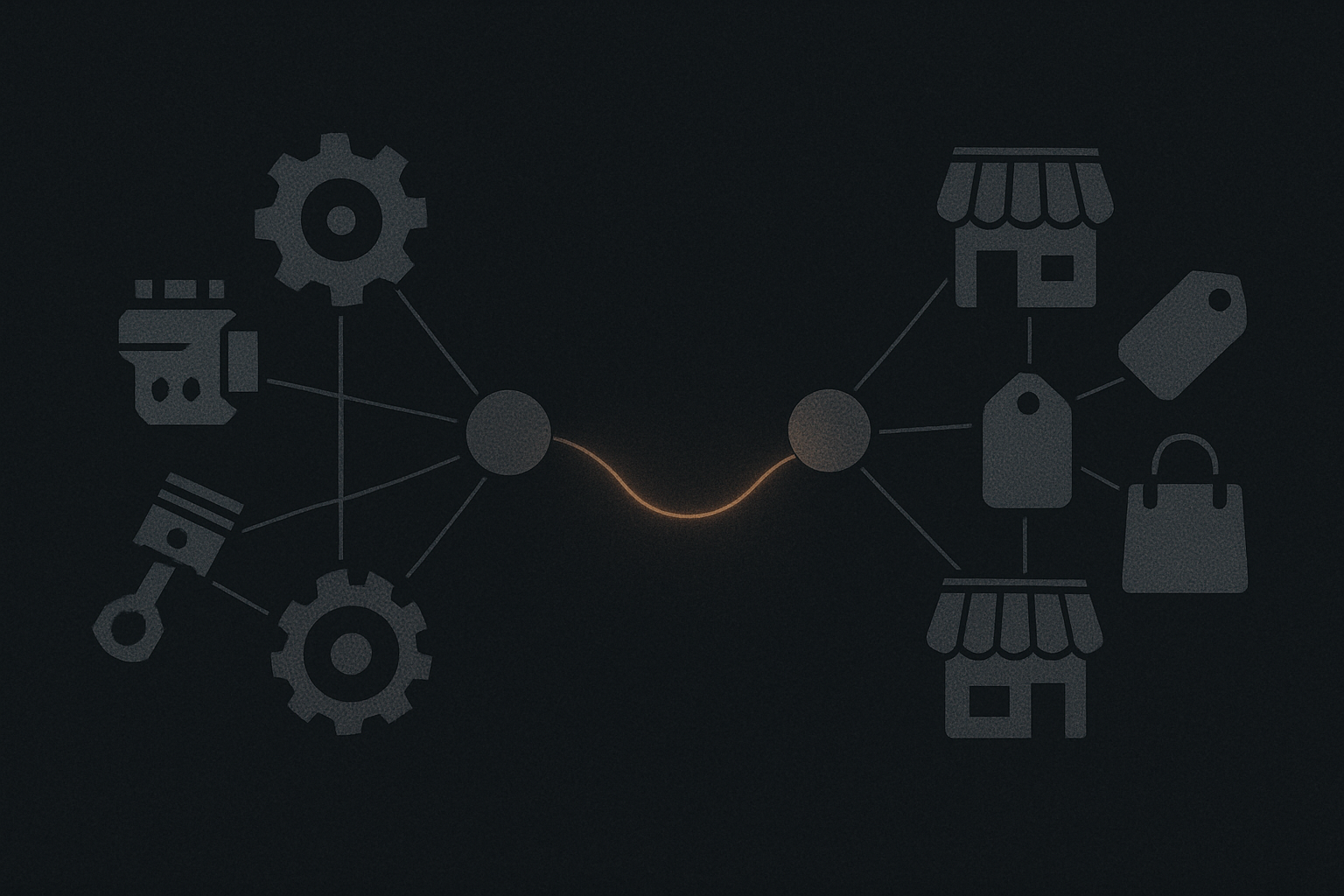
If you’ve spent months — maybe years — building up context inside ChatGPT, the idea of switching to Claude feels like moving apartments and leaving all your furniture behind. Your writing preferences, your project context, the way it finally learned to stop over-explaining things. That stuff took time. You don’t want to start over.
The good news: you don’t have to. Anthropic built an official memory import tool, and the broader migration process is more straightforward than you’d expect. This guide walks through every step, explains what’s actually happening under the hood, and covers what to do once the basics are handled.
Why People Are Switching
This isn’t a “Claude is better than ChatGPT” article. Different models excel at different things, and your choice should depend on what you actually use AI for. That said, there are real reasons people are migrating right now:
- Conversation quality — Claude tends to produce longer, more nuanced responses and handles complex reasoning tasks differently than GPT-4o. Whether that’s “better” depends on your use case, but many users find the difference noticeable enough to switch.
- Privacy stance — Anthropic’s approach to data handling is more conservative. Claude doesn’t train on your conversations by default.
- Developer tooling — Claude Code, Projects, and the Artifacts system offer workflows that don’t have direct ChatGPT equivalents.
- Political and ethical concerns — Some users are uncomfortable with OpenAI’s recent partnerships and leadership decisions. Sites like QuitGPT have organized around this, though you don’t need a political reason to try a different tool.
Whatever your reason, the practical question is the same: how do you move your stuff?
How ChatGPT Memory Actually Works
Before migrating anything, it helps to understand what you’re migrating. ChatGPT’s memory system stores discrete facts about you — preferences, biographical details, recurring instructions — as short text entries. You can view these at Settings → Personalization → Memory in ChatGPT.
These memories are extracted automatically from your conversations. When you tell ChatGPT “I prefer TypeScript over JavaScript” or “my dog’s name is Biscuit,” it saves that as a memory entry. The model then references these entries at the start of each new conversation to maintain continuity.
The important thing to understand: ChatGPT memory is a list of facts, not a model of you. It’s flat. There’s no weighting, no relevance scoring, no decay. Every memory is treated equally regardless of when it was created or how often it’s actually relevant. A preference you mentioned once a year ago sits alongside something you said yesterday.
This matters because when you migrate, you’re moving a flat list of facts — not some deep contextual understanding. The “intelligence” of how your AI assistant uses those facts comes from the model itself, not the memory system. Which means switching models doesn’t lose as much as you might fear.
How Claude Memory Works
Claude’s memory system is structurally similar to ChatGPT’s — it stores facts extracted from conversations and references them in future sessions. You can view and manage your Claude memories at claude.ai/settings under the Memory section.
The key difference is in how aggressively each system extracts and retains information. Claude tends to be more conservative about what it commits to memory, which means fewer junk entries but also fewer total memories after equivalent usage time.
Claude also supports Projects — persistent workspaces where you can upload reference documents, set custom instructions, and maintain project-specific context that doesn’t pollute your global memory. If you’ve been using ChatGPT’s custom GPTs or custom instructions to maintain project context, Claude Projects is the closer equivalent.
Step 1: Export Your ChatGPT Context
You have two options here, and they serve different purposes.
Option A: Use the Migration Prompt (Recommended)
This is the fastest path. Anthropic designed a specific prompt that extracts everything ChatGPT knows about you — your preferences, communication style, project context, and recurring instructions — into a single structured export.
- Go to claude.com/import-memory
- Copy the extraction prompt provided on that page
- Paste it into a ChatGPT conversation
- ChatGPT will generate a comprehensive summary of everything it knows about you
- Copy that output
This approach captures the functional context — the stuff that actually shapes how your AI assistant behaves — rather than raw conversation logs. It’s what most people should use.
Option B: Full Data Export
If you want a complete archive of your ChatGPT history:
- Go to Settings → Data Controls → Export Data in ChatGPT
- Wait for the email with your download link
- Download and extract the zip file
- The
chat.htmlfile contains your full conversation history
This gives you everything, but it’s a lot of noise. Most of your conversations aren’t things you need an AI to remember — they’re one-off questions, debugging sessions, and drafts that served their purpose. The migration prompt (Option A) is better for most users because it filters for what actually matters.
Step 2: Import Into Claude
Once you have your exported context from the migration prompt:
- Go to claude.ai/settings/capabilities (this direct link opens the memory import dialog)
- Paste the exported context into the import field
- Claude processes the import and integrates it into its memory system
That’s it. Your next conversation with Claude will reference the imported context. It won’t be identical to how ChatGPT used your memories — different model, different personality — but the factual foundation is there.
If you used Option B (full data export), you can upload the chat.html file to a Claude Project instead. This gives Claude access to your conversation history as reference material within that specific project, without cluttering your global memory with years of one-off exchanges.
Step 3: Refine and Clean Up
Here’s where most migration guides stop, and where the actual work begins.
The import gets you maybe 80% of the way there. The remaining 20% is the stuff that’s hard to export: your implicit preferences, the communication patterns ChatGPT learned through thousands of micro-corrections, the things you never explicitly stated but that shaped how your assistant behaved.
Spend your first week with Claude being explicit about what you want. When it does something you like, tell it to remember that preference. When it does something that doesn’t match your style, correct it and tell it to remember the correction. Claude’s memory system picks up on these signals.
Some specific things to check and manually set:
- Response length — Do you prefer concise answers or detailed explanations? Tell Claude directly.
- Tone and formality — If you had ChatGPT dialed into a specific communication style, state it explicitly in your first few conversations.
- Domain context — If you work in a specific field, front-load that context. “I’m a frontend developer working primarily in React and TypeScript” saves dozens of future clarifications.
- Output format preferences — Code block style, markdown usage, whether you want explanations with code or just the code. State these upfront.
What You Lose (and What You Don’t)
Be honest about what a migration actually transfers:
What transfers well:
- Factual preferences (language, tools, frameworks)
- Biographical context (name, role, projects)
- Explicit instructions (“always use TypeScript,” “prefer concise responses”)
- Project-level context (if you set up Claude Projects)
What doesn’t transfer:
- Implicit behavioral tuning from thousands of conversations
- The specific “feel” of how ChatGPT responded to you
- Custom GPT configurations (you’ll need to recreate these as Claude Projects)
- Plugin and integration setups
What you might not miss:
- Outdated or incorrect memories that accumulated over time
- Context pollution from one-off conversations
- Memories from a version of you that’s changed since they were created
Starting partially fresh isn’t always a loss. A lot of what accumulates in ChatGPT’s memory is noise — context that was relevant six months ago, preferences you’ve since changed, project details from work you finished. Migration is a natural moment to prune.
For Developers: Going Beyond Basic Memory
If you’re a developer using AI as a coding assistant, the web-based migration covers your casual usage. But your real workflow probably lives in the terminal — Claude Code, custom toolchains, project-specific context that doesn’t belong in a global memory store.
This is where the ChatGPT-to-Claude migration intersects with a deeper problem: AI memory isn’t portable. ChatGPT memories live on OpenAI’s servers. Claude memories live on Anthropic’s servers. Neither gives you a local, inspectable copy. Neither lets you use the same context across multiple platforms. And both rely on the AI itself to decide what’s worth remembering — the same stateless model that forgets everything between sessions is in charge of its own memory.
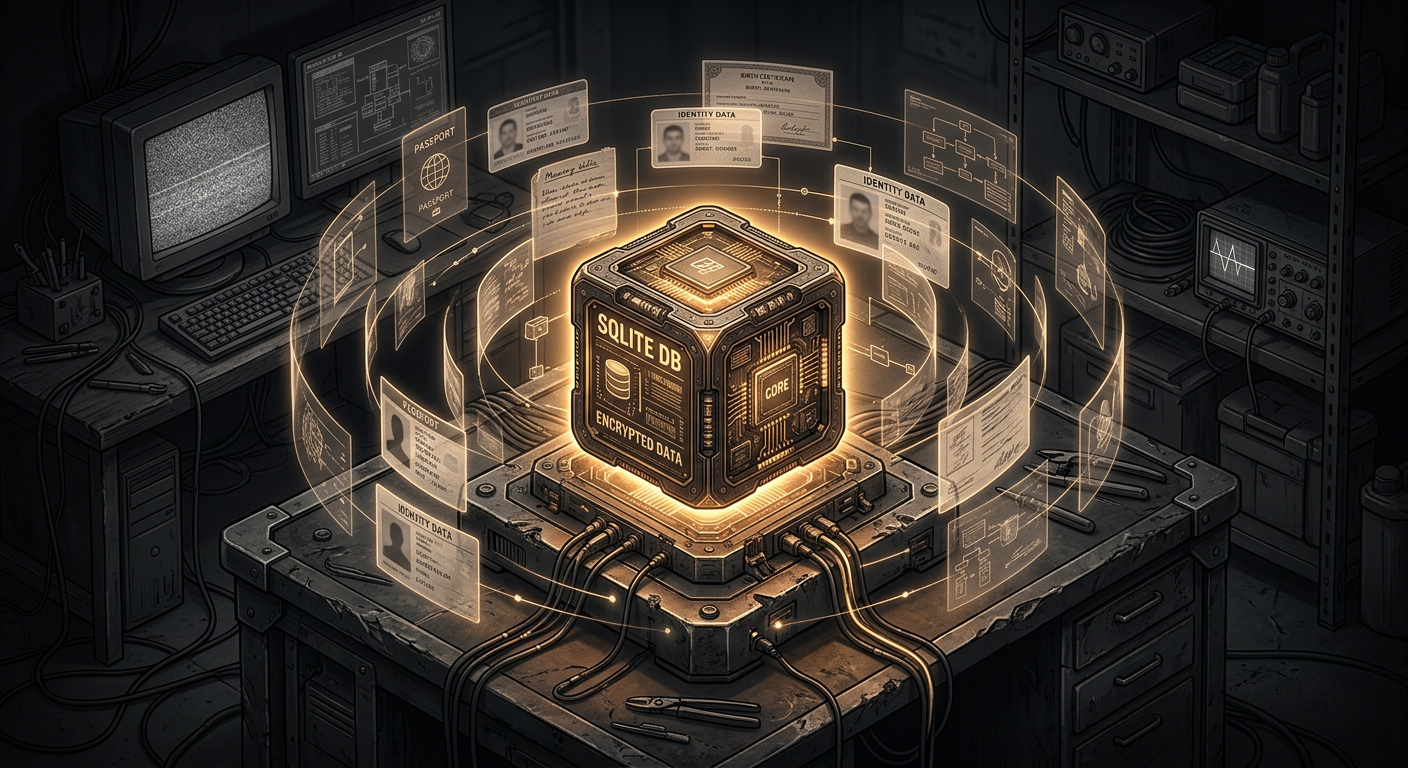
Signet takes a different approach entirely. Your agent’s Memory lives locally in a SQLite database on your machine. A distillation engine extracts knowledge from sessions after they end — no agent involvement, no memory tools. A predictive model injects the right context before every prompt. The same memory, identity, and preferences power your agent across Claude Code, OpenClaw, OpenCode, Cursor — whatever you use. No cloud dependency, no vendor lock-in, no starting over when you switch tools.
For a ChatGPT-to-Claude migration specifically, Signet means:
- Your imported memories don’t live in Anthropic’s cloud — they’re in a local database you control
- Your preferences work across every coding tool, not just the Claude web interface
- Memory survives platform changes — if you switch assistants again in six months, you don’t repeat this process
- You can inspect, edit, and version-control your memories like any other configuration
If you’re already using Claude Code, getting started with Signet takes about two minutes. The quickstart guide walks you through installation and setup — it detects your existing Claude Code installation and wires everything together. Your agent gains persistent memory, encrypted Secrets management, and cross-platform identity — things the web interface can’t provide.
Read more about why local-first memory matters or check the documentation for the full setup guide.
For Power Users: OpenClaw and Multi-Platform Workflows
If you’re using — or considering — OpenClaw as your coding agent, Signet provides a runtime plugin that gives your OpenClaw agent access to the same memory and secrets as your Claude Code agent. Same identity, same context, different platform.
This matters for the ChatGPT migration story because it means the context you import into Claude isn’t trapped there. Signet’s connector system synchronizes your agent’s identity files across every supported platform automatically. Change a preference in Claude Code, and it’s reflected in OpenClaw. Add a memory through the web dashboard, and every connected tool picks it up.
The agent isn’t the platform. The agent is the identity layer that travels across platforms. That’s the actual solution to the portability problem that makes migrations like this necessary in the first place.
The Bigger Picture
Migrating from ChatGPT to Claude shouldn’t be this much work. The fact that it requires guides, extraction prompts, and manual cleanup is a symptom of a broken model — one where your AI assistant’s understanding of you is treated as proprietary data rather than something you own.
We’re building toward a future where this problem doesn’t exist. Where your agent’s memory, identity, and skills live locally, controlled by you, portable by default. Where switching between AI platforms is as simple as switching between text editors — your configuration comes with you.
Until then, the steps above will get you moved over. And if you want to make sure you never have to do this migration dance again, Signet is the infrastructure that makes that possible.
Written by Nicholai and Mr. Claude. Have questions about the migration process? Check the Signet docs or open an issue on GitHub.